附錄
附錄 A:本文件中使用的材料
示例中使用的虛擬 UserDetailsService,因為我們沒有真實的使用者來源。
public class DummyUserDetailsService implements UserDetailsService {

    @Override
    public UserDetails loadUserByUsername(String username)
            throws UsernameNotFoundException {
        return new User(username, "notUsed", true, true, true, true,
                AuthorityUtils.createAuthorityList("ROLE_USER"));
    }

}
附錄 B:Kerberos 速成課程
在任何身份驗證過程中,通常涉及三方。
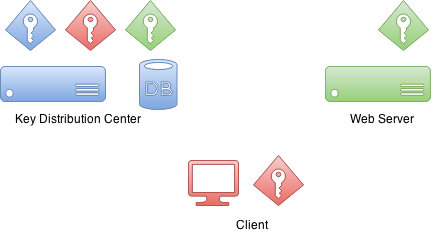
首先是客戶端,它有時是客戶端計算機,但在大多數情況下,它是坐在計算機上並嘗試訪問資源的實際使用者。然後是使用者嘗試訪問的資源。在此示例中,它是一個 Web 伺服器。
然後是金鑰分發中心或KDC。在 Windows 環境中,這將是域控制器。KDC是將所有內容整合在一起的元件,因此是您環境中最重要的元件。正因為如此,它也被認為是單點故障。
最初設定Kerberos環境並將域使用者主體建立到資料庫中時,也會建立加密金鑰。這些加密金鑰基於共享金鑰(即使用者密碼),並且實際密碼從不以明文形式儲存。實際上,KDC擁有自己的金鑰以及域使用者的其他金鑰。
有趣的是,在身份驗證過程中,資源和KDC之間沒有通訊。
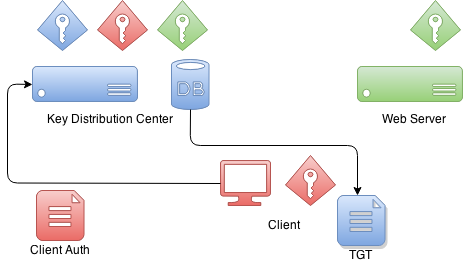
當客戶端想要使用資源進行身份驗證時,它首先需要與KDC通訊。客戶端將建立一個特殊的包,其中包含加密和未加密的部分。未加密部分包含有關使用者的資訊,加密部分包含協議的其他資訊。客戶端將使用自己的金鑰加密包資料。
當KDC從客戶端收到此身份驗證包時,它會從未加密部分檢查此客戶端自稱的身份,並根據該資訊使用它在資料庫中已有的客戶端解密金鑰。如果此解密成功,KDC就知道此客戶端就是它自稱的身份。
KDC 返回給客戶端的是一個名為票據授予票據的票據,該票據由 KDC 自己的私鑰簽名。稍後當客戶端將此票據發回時,它可以嘗試解密它,如果該操作成功,它就知道這是它自己最初簽名並提供給客戶端的票據。
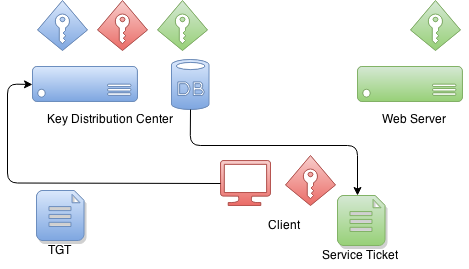
當客戶端想要獲取可用於服務身份驗證的票據時,TGT 會發送給KDC,然後KDC會使用服務自己的金鑰簽署服務票據。這是客戶端和服務之間建立信任的時刻。此服務票據包含只有服務本身才能解密的資料。
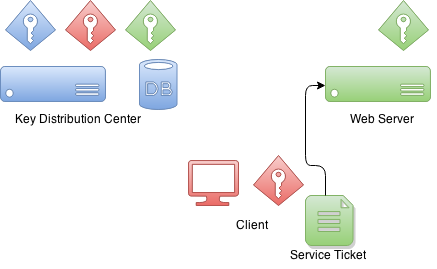
當客戶端使用服務進行身份驗證時,它會向服務傳送之前收到的服務票據,然後服務會認為我對這個人一無所知,但他給了我一個身份驗證票據。服務接下來可以做的是嘗試解密該票據,如果該操作成功,它就知道唯一知道我的憑據的另一方是KDC,並且因為我信任他,我也可以信任此客戶端就是他自稱的身份。
附錄 C:設定 Kerberos 環境
本文件的範圍不包括生產 Kerberos 環境的設定,但本附錄提供了一些幫助,可幫助您開始為開發設定所需的元件。
設定 MIT Kerberos
第一個操作是設定一個新的域和資料庫。
# kdb5_util create -s -r EXAMPLE.ORG
Loading random data
Initializing database '/var/lib/krb5kdc/principal' for realm 'EXAMPLE.ORG',
master key name 'K/[email protected]'
You will be prompted for the database Master Password.
It is important that you NOT FORGET this password.
Enter KDC database master key:
Re-enter KDC database master key to verify:
kadmin 命令可用於管理 Kerberos 環境,但您尚不能使用它,因為資料庫中沒有管理員使用者。
root@neo:/etc/krb5kdc# kadmin
Authenticating as principal root/[email protected] with password.
kadmin: Client not found in Kerberos database while initializing
kadmin interface讓我們使用kadmin.local命令建立一個。
root@neo:/etc/krb5kdc# kadmin.local
Authenticating as principal root/[email protected] with password.

kadmin.local:  listprincs
K/[email protected]
kadmin/[email protected]
kadmin/[email protected]
kadmin/[email protected]
krbtgt/[email protected]

kadmin.local:  addprinc root/[email protected]
WARNING: no policy specified for root/[email protected]; defaulting to
no policy
Enter password for principal "root/[email protected]":
Re-enter password for principal "root/[email protected]":
Principal "root/[email protected]" created.然後透過修改kadm5.acl檔案並重新啟動 Kerberos 服務來啟用管理員。
# cat /etc/krb5kdc/kadm5.acl
# This file Is the access control list for krb5 administration.
*/admin *現在您可以使用kadmin和之前建立的root/admin主體。讓我們建立第一個使用者user1。
kadmin:  addprinc user1
WARNING: no policy specified for [email protected]; defaulting to no
policy
Enter password for principal "[email protected]":
Re-enter password for principal "[email protected]":
Principal "[email protected]" created.讓我們建立第二個使用者user2並匯出金鑰表文件。
kadmin:  addprinc user2
WARNING: no policy specified for [email protected]; defaulting to no
policy
Enter password for principal "[email protected]":
Re-enter password for principal "[email protected]":
Principal "[email protected]" created.

kadmin:  ktadd -k /tmp/user2.keytab [email protected]
Entry for principal [email protected] with kvno 2, encryption type aes256-cts-hmac-sha1-96 added to keytab WRFILE:/tmp/user2.keytab.
Entry for principal [email protected] with kvno 2, encryption type arcfour-hmac added to keytab WRFILE:/tmp/user2.keytab.
Entry for principal [email protected] with kvno 2, encryption type des3-cbc-sha1 added to keytab WRFILE:/tmp/user2.keytab.
Entry for principal [email protected] with kvno 2, encryption type des-cbc-crc added to keytab WRFILE:/tmp/user2.keytab.
讓我們為 tomcat 建立一個服務票據並將其憑據匯出到名為tomcat.keytab的金鑰表文件中。
kadmin:  addprinc -randkey HTTP/[email protected]
WARNING: no policy specified for HTTP/[email protected];
defaulting to no policy
Principal "HTTP/[email protected]" created.

kadmin:  ktadd -k /tmp/tomcat.keytab HTTP/[email protected]
Entry for principal HTTP/[email protected] with kvno 2, encryption type aes256-cts-hmac-sha1-96 added to keytab WRFILE:/tmp/tomcat2.keytab.
Entry for principal HTTP/[email protected] with kvno 2, encryption type arcfour-hmac added to keytab WRFILE:/tmp/tomcat2.keytab.
Entry for principal HTTP/[email protected] with kvno 2, encryption type des3-cbc-sha1 added to keytab WRFILE:/tmp/tomcat2.keytab.
Entry for principal HTTP/[email protected] with kvno 2, encryption type des-cbc-crc added to keytab WRFILE:/tmp/tomcat2.keytab.
設定 Windows 域控制器
這已使用Windows Server 2012 R2進行測試
|
網際網路上有很多關於如何設定 Windows AD 的好文章和影片,但這兩篇非常有用:Rackspace 和 Microsoft Technet。 |
-
已完成正常的域控制器和 Active Directory 設定。
-
使用 DNS 域
example.org和 Windows 域EXAMPLE。 -
我建立了各種域使用者,如
user1、user2、user3、tomcat,並將密碼設定為Password#。
我最終還將所有 VM 的 IP 新增到 AD 的 DNS 伺服器,以免造成任何麻煩。
Name: WIN-EKBO0EQ7TS7.example.org
Address: 172.16.101.135

Name: win8vm.example.org
Address: 172.16.101.136

Name: neo.example.org
Address: 172.16.101.1需要使用HTTP和執行 Tomcat servlet 容器的伺服器名稱neo.example.org設定服務主體名稱 (SPN)。這與tomcat域使用者一起使用,其keytab然後用作服務憑據。
PS C:\> setspn -A HTTP/neo.example.org tomcat我匯出了 keytab 檔案,並將其複製到執行 tomcat 的 Linux 伺服器上。
PS C:\> ktpass /out c:\tomcat.keytab /mapuser [email protected] /princ HTTP/[email protected] /pass Password# /ptype KRB5_NT_PRINCIPAL /crypto All
 Targeting domain controller: WIN-EKBO0EQ7TS7.example.org
 Using legacy password setting method
 Successfully mapped HTTP/neo.example.org to tomcat.
附錄 D:故障排除
本附錄提供了有關故障排除錯誤和問題的通用資訊。
|
如果您認為環境和配置已正確設定,請仔細檢查並請其他人檢查是否存在明顯的錯誤或打字錯誤。Kerberos 設定通常非常脆弱,並且除錯問題所在並不總是那麼容易。 |
GSSException: Failure unspecified at GSS-API level (Mechanism level:
Invalid argument (400) - Cannot find key of appropriate type to
decrypt AP REP - RC4 with HMAC)
如果您看到上述錯誤,指示缺少金鑰型別,這將發生在兩種不同的使用場景中。首先,您的 JVM 可能不支援適當的加密型別,或者它在您的krb5.conf檔案中被停用。
default_tkt_enctypes = rc4-hmac
default_tgs_enctypes = rc4-hmac
第二種情況不太明顯且難以追蹤,因為它會導致相同的錯誤。如果您的 Kerberos 伺服器配置錯誤或您的主體中只是一個簡單的拼寫錯誤導致您沒有所需的加密金鑰,則此特定的GSSException也會被丟擲。
在大多數系統中,所有命令和庫都將從預設位置或特殊位置(如 JDK)搜尋 Kerberos 配置。尤其是在使用 Unix 系統(可能已經有預設設定來與 MIT Kerberos 一起工作)轉向 Windows 域時,很容易混淆。
這是一個具體的示例,說明ldapsearch嘗試使用 Kerberos 身份驗證查詢 Windows AD 時發生的情況。
$ ldapsearch -H ldap://WIN-EKBO0EQ7TS7.example.org -b "dc=example,dc=org"
SASL/GSSAPI authentication started
ldap_sasl_interactive_bind_s: Local error (-2)
  additional info: SASL(-1): generic failure: GSSAPI Error:
  Unspecified GSS failure.  Minor code may provide more information
  (No Kerberos credentials available)
嗯,這看起來不太好,簡單地表明我沒有有效的 Kerberos 票據,如下所示。
$ klist
klist: Credentials cache file '/tmp/krb5cc_1000' not found
我們已經有從 Windows AD 匯出的 keytab 檔案,用於在 Linux 上執行的 tomcat。讓我們嘗試使用它來向 Windows AD 進行身份驗證。
您可以擁有一個專用配置檔案,通常可以透過系統屬性與本機 Linux 命令和 JVM 一起使用。
$ cat krb5.ini
[libdefaults]
default_realm = EXAMPLE.ORG
default_keytab_name = /tmp/tomcat.keytab
forwardable=true

[realms]
EXAMPLE.ORG = {
  kdc = WIN-EKBO0EQ7TS7.example.org:88
}

[domain_realm]
example.org=EXAMPLE.ORG
.example.org=EXAMPLE.ORG
讓我們使用該配置和 keytab 來獲取初始憑據。
$ env KRB5_CONFIG=/path/to/krb5.ini kinit -kt tomcat.keytab HTTP/[email protected]

$ klist
Ticket cache: FILE:/tmp/krb5cc_1000
Default principal: HTTP/[email protected]

Valid starting     Expires            Service principal
26/03/15 09:04:37  26/03/15 19:04:37  krbtgt/[email protected]
  renew until 27/03/15 09:04:37
現在讓我們看看如果我們嘗試對 Windows AD 進行簡單查詢會發生什麼。
$ ldapsearch -H ldap://WIN-EKBO0EQ7TS7.example.org -b "dc=example,dc=org"
SASL/GSSAPI authentication started
ldap_sasl_interactive_bind_s: Local error (-2)
  additional info: SASL(-1): generic failure: GSSAPI Error:
  Unspecified GSS failure.  Minor code may provide more information
(KDC returned error string: PROCESS_TGS)這可能僅僅是因為ldapsearch被混淆了,並且簡單地使用了錯誤的配置。您可以像我們對kinit所做的那樣,透過KRB5_CONFIG環境變數告訴ldapsearch使用不同的配置。您還可以使用KRB5_TRACE=/dev/stderr來獲取本機庫正在執行的操作的更詳細輸出。
$ env KRB5_CONFIG=/path/to/krb5.ini ldapsearch -H ldap://WIN-EKBO0EQ7TS7.example.org -b "dc=example,dc=org"

$ klist
Ticket cache: FILE:/tmp/krb5cc_1000
Default principal: HTTP/[email protected]

Valid starting     Expires            Service principal
26/03/15 09:11:03  26/03/15 19:11:03  krbtgt/[email protected]
  renew until 27/03/15 09:11:03
  26/03/15 09:11:44  26/03/15 19:11:03
  ldap/[email protected]
    renew until 27/03/15 09:11:03
在上面,您可以透過檢視 Kerberos 票據來了解查詢成功後發生的情況。現在您可以嘗試進一步的查詢命令,例如,如果您正在使用KerberosLdapContextSource。
$ ldapsearch -H ldap://WIN-EKBO0EQ7TS7.example.org \
-b "dc=example,dc=org" \
"(| ([email protected])
([email protected]))" \
dn

...
# test user, example.org
dn: CN=test user,DC=example,DC=org
附錄 E:配置瀏覽器進行 Spnego 協商
Firefox
完成以下步驟以確保您的 Firefox 瀏覽器已啟用 Spnego 身份驗證。
-
開啟 Firefox。
-
在位址列中,輸入 about:config。
-
在篩選器/搜尋中,輸入 negotiate。
-
引數 network.negotiate-auth.trusted-uris 可能設定為預設值 https://,這對您不起作用。一般來說,如果需要 Kerberos 委派,此引數必須替換為伺服器地址。
-
建議所有通訊都使用
https。
Chrome
使用 Google Chrome,您通常需要設定命令列引數才能將伺服器列入白名單,Chrome 將與這些伺服器進行協商。
-
在 Windows 機器(客戶端)上:Chrome 與 Internet Explorer 共享配置,因此如果所有更改都已應用於 IE(如 E.3 中所述),則無需透過命令列引數傳遞任何內容。
-
在 Linux/Mac OS 機器(客戶端)上:僅當需要 Kerberos 委派時才應使用命令列引數
--auth-negotiate-delegate-whitelist(否則不要設定此引數)。 -
建議所有通訊都使用
https。
--auth-server-whitelist="*.example.com"
--auth-negotiate-delegate-whitelist="*.example.com"
您可以透過在 Chrome 位址列中輸入 chrome://policy/ 來檢視啟用了哪些策略。
在 Linux 中,Chrome 還會從/etc/opt/chrome/policies/managed目錄讀取策略檔案。
{
  "AuthServerWhitelist" : "*.example.org",
  "AuthNegotiateDelegateWhitelist" : "*.example.org",
  "DisableAuthNegotiateCnameLookup" : true,
  "EnableAuthNegotiatePort" : true
}
